Posts

Showing posts with the label Howto

How to Install Windows 10 on macOS

Image
  You can easily install and run Windows operating system on Mac computers through the tool ‘Boot Camp.’ But for this, you need to check a few things, such as your device’s compatibility, storage, etc. Well, before moving to the main topic, let’s have a look what is the minimum requirements for being able to install Windows 10 on a Mac computer. Requirements The most important thing that you need to check before you begin to install Windows 10 on your Mac PC is that it should be up to date. The other things are – the compatibility of the device, enough storage space, and Intel’s processor made after 2012 because the previous chipsets are not capable of running Windows through Boot Camp. Keep in mind that the Apple Silicon M1 processor does not support Boot Camp so you can’t install Windows 10 through Boot Camp if your Mac computer has this processor. However, you can install Windows 10 on Mac M1 via a virtual machine, but in this article, we will only learn to install Windows 10 on...

Dark Mode(Invert Colors): How to Enable it on An iPhone

Image
  Dark mode has multiple benefits, such as extending battery life and reducing strain on the users’ eyes. The users can enable dark mode by inverting colors on the iPhone. The users can access multiple accessibility features on their iPhone. They can use these accessibility features to tweak the display of their iPhone. This tweaking also includes inverting the colors to enable a dark mode. Enabling dark mode makes it easy for the users to use iPhone and improves the overall user experience in general. It is easy and quick to access the options of the inverted colors on your iPhone. Here’s how you can do it. These days, there is a rage to turn on night themes or dark mode on the devices’ apps or operating systems. It is a display setting that you can enable on your device. The dark mode uses light-colored icons, text, and other graphics against a light or dark background. By contrast, the dark text’s default setting against a light backdrop is commonly known as “light mode.” Using ...

Samsung’s Galaxy S21:How to Take a Screenshot

Image
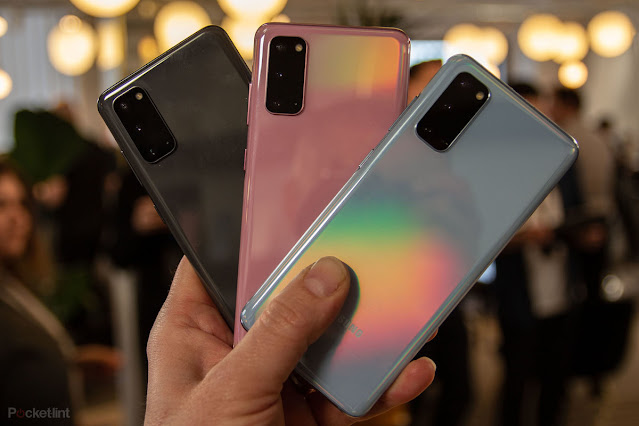
  The users can capture an image of the screen with the Samsung Galaxy 21 in multiple ways. Also, they can crop or edit the picture conveniently afterward. The smartphone series of Samsung Galaxy S21 offers multiple ways to capture screenshots. These smartphone series launched by South Korean tech company will appeal to a large number of users. Taking screenshots will not be a big concern for the users because it’s a useful and excellent tool. Here is a brief description of how you take a screenshot on the Samsung Galaxy S21 smartphone. The South Korean tech company Samsung launched its Galaxy S21 smartphone series at the Galaxy Unpacked press event on January 14. Samsung also launched its wireless earbuds’ latest edition, i.e., the Galaxy Buds Pro and its latest object finder, the Galaxy SmartTag, at this press event. The S21 series smartphone launched by this leading smartphone seller company includes the Galaxy S21 Ultra, the Galaxy S21, and the standard Galaxy S21. Meanwhile, t...

How to Use Intercom on HomePod, iPhone, and more?

Image
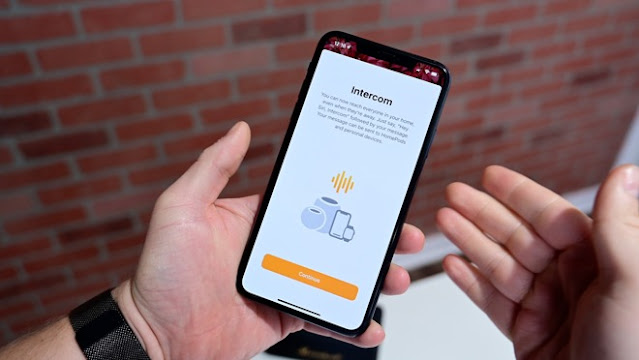
  The introduction of iOS 14.2 brought a new voice messaging feature: Intercom. It will help you send your own recordings quickly as voice messages to anyone via the Home app on iOS devices like iPhone, HomePod, etc. If you want to know more about the Intercom feature and how to use the same, then read the post to the end: Set Up Intercom in Home App First, you have to update your device OS to iOS 14.2. An Intercom screen will display once you open the Home app on your device. The displayed Intercom screen will guide you through the entire setup procedure.  To know more, follow these steps: At the start, open the Home app on your device. Then, press the Continue tab once the Intercom prompt comes into view. After that, choose the time when you like to accept Intercom Notifications with just a single tab. Now, hit the Continue button there. Next, toggle the switch located just after the name of the person. Once you are all done, hit the Continue tab to complete the setup proced...

How to Turn On Auto Unlock on your Mac and Apple Watch?

Image
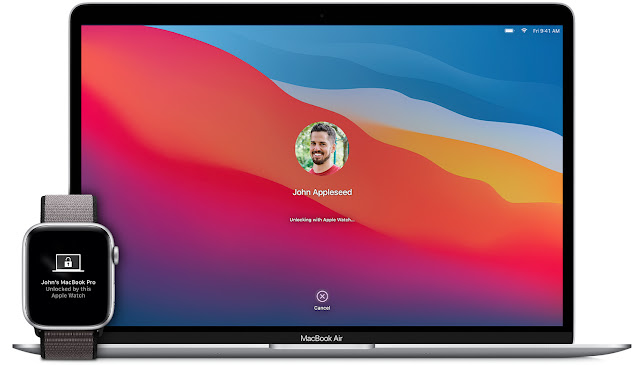
  Apple Watch and Mac are two different devices developed by Apple Inc. On the one hand, Apple’s wearable gadget provides tons of fitness information and Apple Pay accessibility, whereas, on the other hand, Mac is a computer that runs on compatible software based on macOS. Apple provided a new feature, “Auto Unlock.” It can be used to pair your Apple Watch to the Mac for unlocking the device. For this procedure to work, you need macOS Sierra or above on Mac and watchOS 3 or above on your wearable device. When you have paired both the devices, you can easily unlock your computer automatically by sitting down in front of it. It won’t ask you to enter your account passcode. Here’s how: Specs and System Requirements for Setting up Auto Unlock Feature Before going through the detailed procedure for auto-unlocking the device, it is recommended to read these prerequisites as these tips are necessary for both the devices: Make sure that your wearable gadget or Mac is compatible with this p...

How to Set Up and Use Touch ID on MacBook Air and MacBook Pro?

Image
  Some MacBook Pro and Air versions sport Touch ID features. Apple is now providing Touch ID functionality in its MacBook Air and Pro devices as an in-built feature on the keyboard. Setting up a Touch ID on these two versions of MacBooks is very easy. It will take you a moment to register yourself to this security feature even if you are new to Mac. Here are the steps to follow on how to use Touch ID on MacBook Air and MacBook Pro: Set up and Use Touch ID on Mac At the first step, you will be required to register your fingerprint for using Touch ID security features on your MacBook. You can register up to three fingers for this process at any time with a total limit of five across Touch ID accounts. All the registered fingers will then be saved and stored in encrypted form into the Secure Enclave on your Mac. Now, let’s start with these offered steps on how to register your fingerprint as touch ID: Adding Fingerprint Here are the steps to add your fingerprint on MacBook Pro and Mac...

How to Fix Xbox One Controller Keeps Disconnecting?

Image
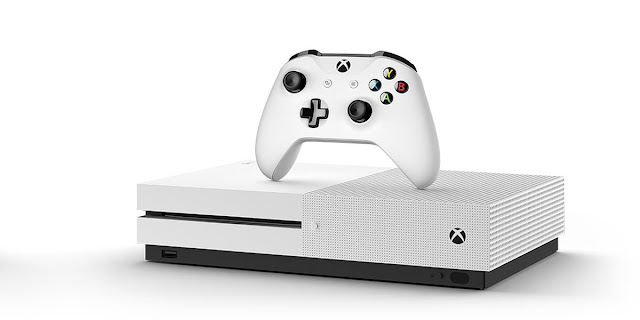
  Xbox One is one of the best and most famous home video gaming consoles all across the world. The controllers of Xbox are available in wired as well as wireless versions. However, due to comfort and convenience, wireless ones are more popular.  While wireless Xbox controllers are amazing, they can run into connectivity issues every now and then. If your Xbox one controller keeps disconnecting, then check out the solutions mentioned below. Move the Controller Closer to the Console If your wireless controller is placed at a distance from the console, then you should shift it to a closer range. Simply move towards the console, and check if the controller can connect or not. If there are obstructions, then remove them. Change the Batteries or Charge the Pack of Battery If the batteries in your controller have run out, then either put them on charge or replace them with new ones. Power Cycle the Console You can power cycle the console by following these directions given below: Fir...

How to Fix Minecraft Won’t Launch on Windows?

Image
  Minecraft is one of the most famous sandbox action-adventure games by Mojang Studios. It offers you a 3D world experience with infinite terrain. In this game, you can make and break apart multiple types of blocks into three-dimensional worlds. But some gamers encounter launching issues on Windows while trying to run the game. If you are facing the same issue, then here are some solutions that can help you. Let’s check them out. Stop the Minecraft Process You should stop the Minecraft process by following these guidelines laid down below: Hold the ‘Ctrl + Shift + Esc’ hotkeys simultaneously to invoke the Task Manager. Once you reach the tab of Processes, select the Minecraft option, and right-click on it, then pick the End task option. Now, open Minecraft once again to check whether it is working correctly. Launch Minecraft as Administrator Go to the start menu. Click on File Explorer. Click on This PC and then go to Local Disk (C:). Select Program Files (x86). Find the Minecraft ...